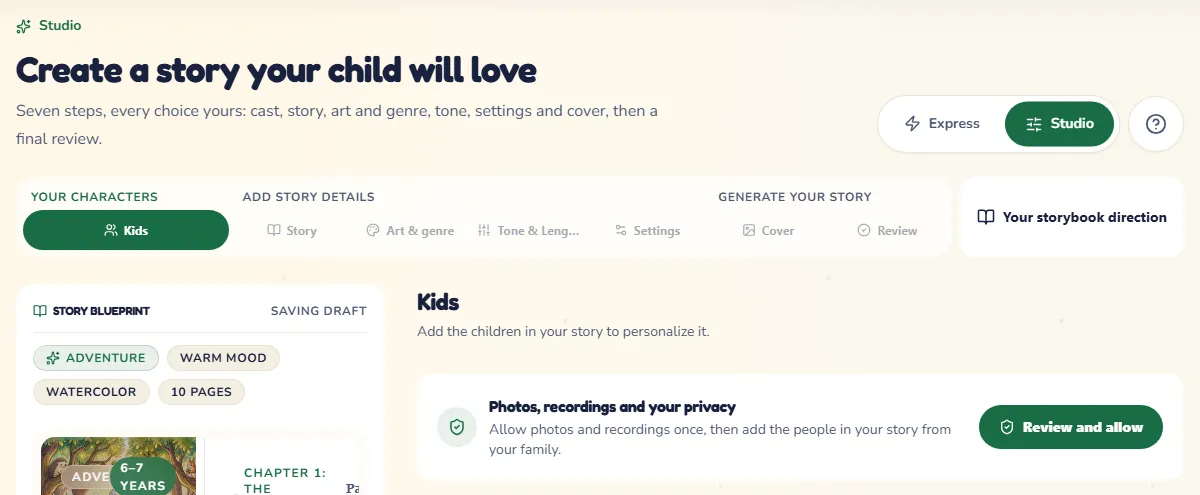
Seven steps, every choice yours: the cast and their voices, the story, the art and the genre, the tone, the settings, the cover and a final review.
zeStory ·Oct 4, 2026·4 min read
Studio is for the family who wants to decide everything: the cast and their voices, the plot, the art and the genre, the mood, the language, the narrator and the cover. Open it with Studio at the top of the creator.
The seven steps sit in a rail across the top. Next and Back move between them, and you can tap any step you have already reached to change it. On a wide screen, Story Blueprint beside the steps shows the book as you shape it. When you are signed in, your draft saves as you go.
Who's making this story?: your name and who you are to the children, then Continue.
Photos, recordings and your privacy: a pop-up explains how photos and recordings are used. Press I agree; the cast opens once you have.
The cast: press Add details and the character opens in a pop-up, with their photo, name, age, looks and Voice. Keep the voice that fits their age, tap one of your family's, or press Record My Voice to record your own. Then press Done. A story holds up to four characters.
2. Story
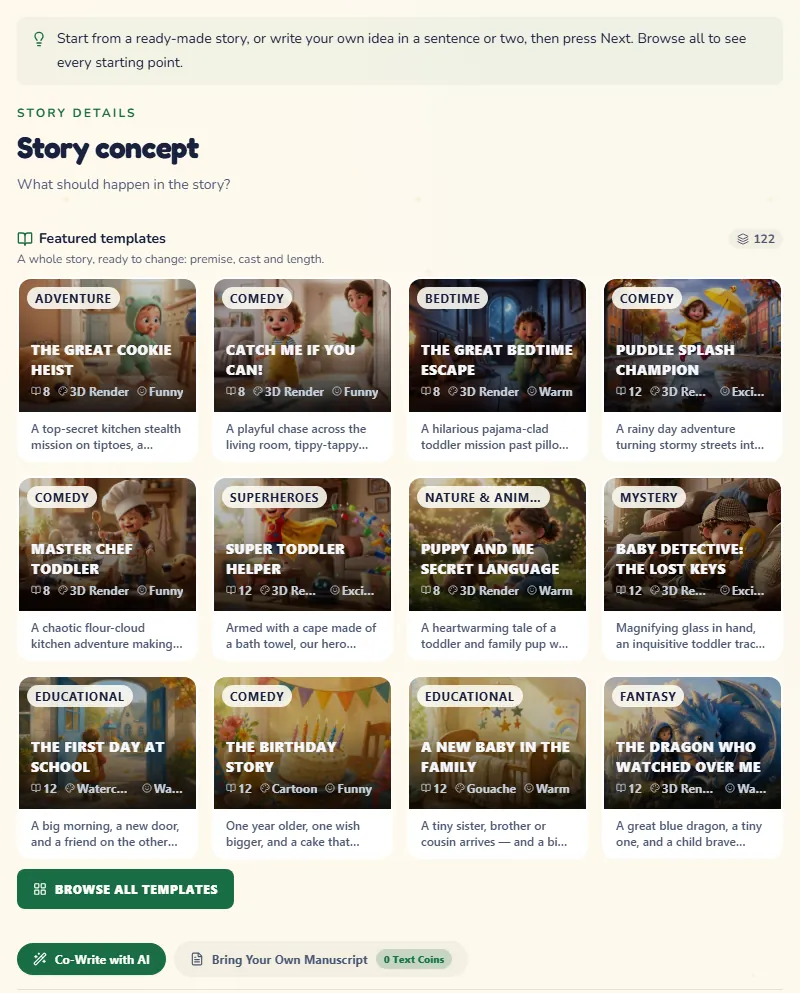
Start from a ready-made story, or write your own idea:
Tap a story, or press Browse all templates to search them all. clears it.
To write your own, describe what should happen in a sentence or two. Stuck? Inspire me suggests ideas, and Enhance turns a short idea into a fuller one: keep it with Use this or press Keep mine.
Already have the words? Bring Your Own Manuscript takes your own text and splits it into pages, and no coins are spent on writing it.
Under Story Elements & Companions, add a lesson, a place, a companion and an object that matters.
3. Art & genre
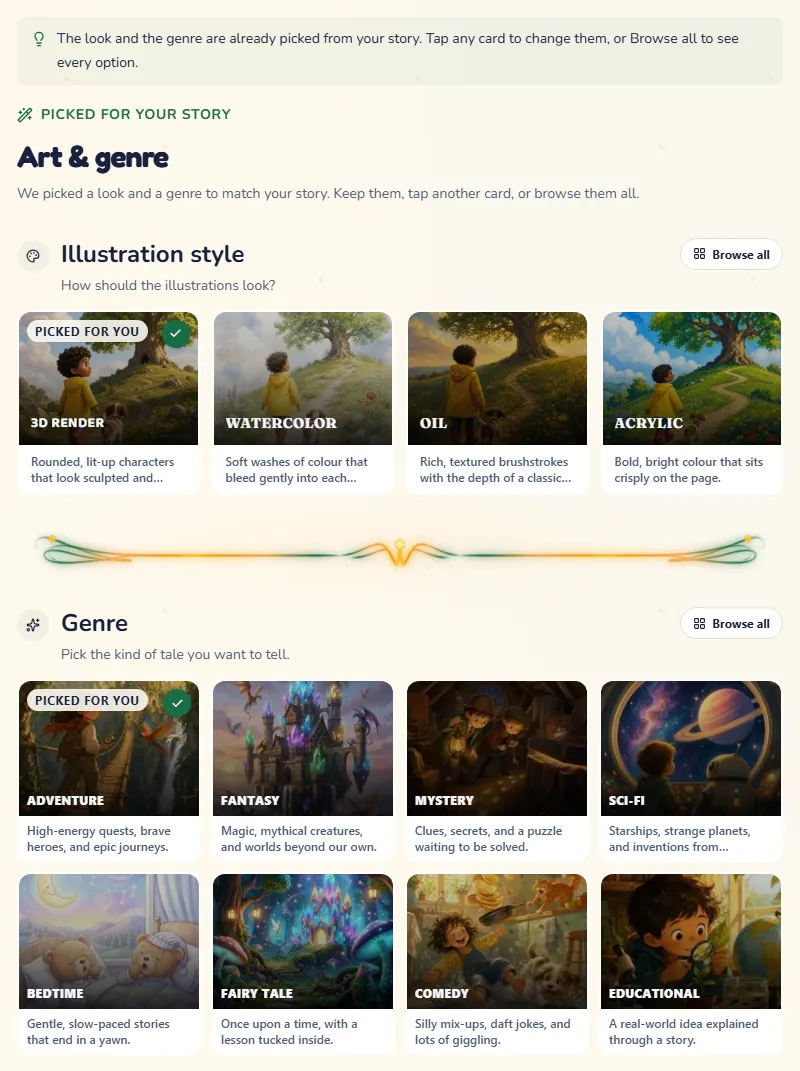
This step arrives already filled in: the art style and the genre are picked to match your story, from the template you chose or from the idea you wrote, and each pick is marked Picked for you.
Keep them and press Next, or tap another look or another genre.
Browse all styles and Browse all genres open every style and every genre.
4. Tone & Length
Choose the Story feeling and the Story length. Tell it in rhyme writes the whole book in rhyme.
5. Settings
Every setting already has a working default, so you can press Next, or fine-tune:
Narrator character: who tells the story, and the voice that reads it.
Interactive Reading Features: Highlight a few words to explore, Add a simple end-of-story reflection and Let readers choose a gentle next step. With choices, the reader decides what happens next, and the pages after a choice are words only.
Story language: thirteen languages, including Arabic and Hebrew, read right to left. It does not have to be the language you use the app in.
Page count: from 4 to 24 pages.
Safety & Values: Balanced or Strict, and the values the story should carry.
6. Cover
Automatic Cover paints a cover from the story; Custom Cover Prompt lets you describe the scene yourself.
When the story has more than one child, choose Who is on the cover.
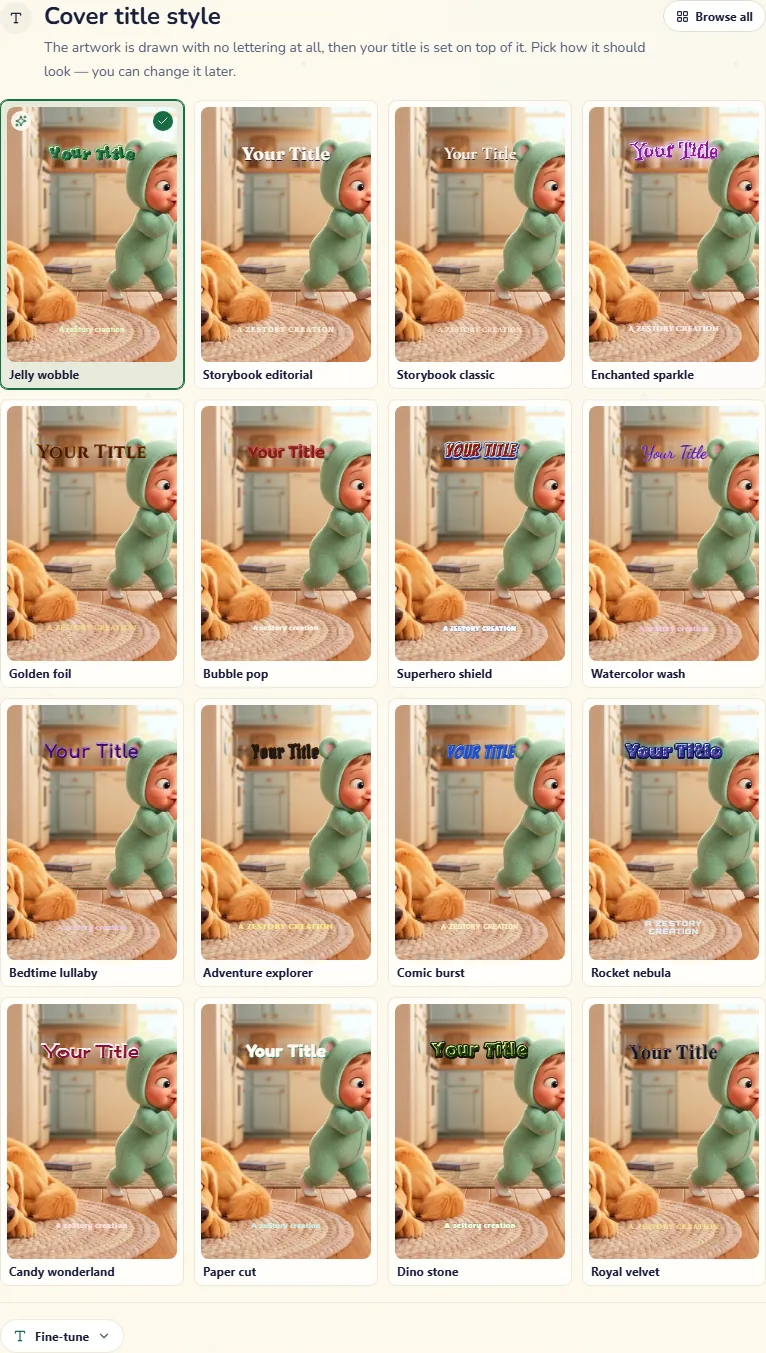
Under Cover title style, sixteen title styles sit in a grid of four by four, each drawn on your cover with your title, and the style made for your story is marked with a sparkle. Browse all opens every style, sorted into families, and Fine-tune sets where the title sits, its size, its letters and its colours.
7. Review
Check everything once. Here you choose:
Quality profile: the everyday engines, or the premium ones for richer language, truer likeness and a sharper film.
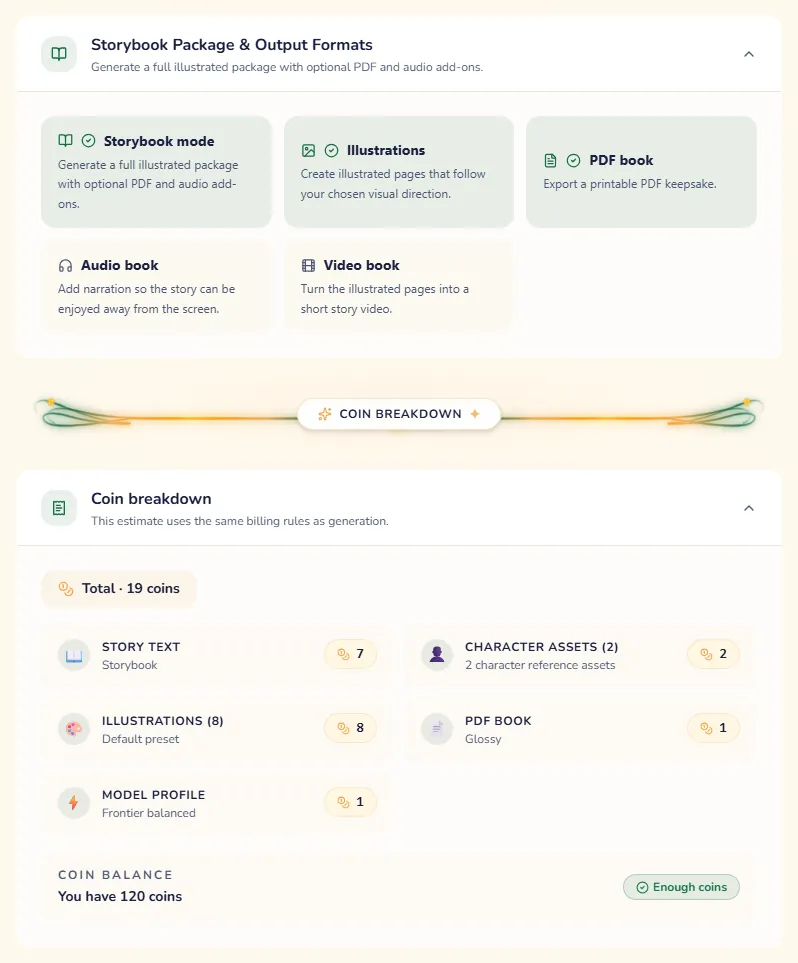
Storybook Package & Output Formats: switch the Illustrations, the PDF book, the Audio book and the Video book on or off.
Coin breakdown lists what each part costs, in coins, and the total. Press Generate story. If your coins do not cover it, Top up coins opens the coin shop and brings you back to this step with your draft.
Some choices are no longer made here: the book's format, its page layout and text panel, and the cover mood. Each starts on what suits your story, and you change it once the book is made, in the story editor under Blueprint, where you also find the character sheet every page is drawn against and can redraw the cover in a new mood.
What happens next
The story opens as soon as it is ready and fills in page by page. From there you can read it, edit any page, make the film and order a printed copy. For a faster start next time, try Express mode.
Turn your next idea into a personalized storybook
Create consistent characters, branching story paths, and print-ready books with governed creative tools.